
Deterrent Tools
Deterrent tools place sound-producing units on the site plan. Deterrents drive the SPL heatmap and can be edited after placement.
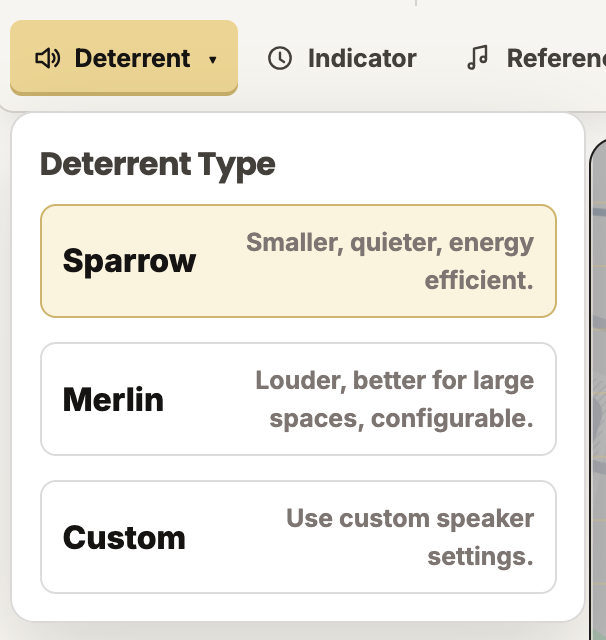
Deterrent menu
Open Deterrent and choose one of the available unit types.
Sparrow
Sparrow is the smaller preset option. It is configured as a 20 W unit with 90 dB sensitivity at 1 W / 1 m. Use Sparrow where you need smaller, quieter, more energy-efficient coverage.
Merlin
Merlin is the louder preset option. It is configured as an 80 W unit with 90 dB sensitivity at 1 W / 1 m. Use Merlin for larger spaces or situations where higher output is required.
Custom
Custom lets you enter power and sensitivity values manually after placement. Use custom units when modeling a non-standard speaker or an experimental deterrent configuration.
Editable custom fields:
- Power in watts.
- Sensitivity in dB at 1 W / 1 m.
Placing a deterrent
- Choose a deterrent type.
- Click the map where the unit should be placed.
- Switch to Select to move or edit it.
Editing a deterrent
Select a deterrent to edit it in the popup or selected object panel.

Editable deterrent fields:
- Speaker name.
- Speaker type: Merlin, Sparrow, or Custom.
- Custom power and sensitivity, when Custom is selected.
- Power source.
- AC supply voltage, when Plugged In is selected.
- Volume percentage.
- Act as attractant.
Power source
Each deterrent can be tagged with a power source.
Power source options:
- Unspecified.
- Plugged In.
- Solar Powered.
- Battery Powered.
When Plugged In is selected, enter the AC supply voltage. Power-source tags are preserved in share links.
Volume
The volume slider adjusts the effective output percentage for the selected deterrent. Heatmap values update when the deterrent output changes.
Act as attractant
Enable Act as attractant when a unit should be treated as an attractant rather than a deterrent in the plan. The visual marker changes to distinguish the role.
Moving deterrents
Use Select, click and drag a deterrent to reposition it, then release. The heatmap updates after movement.
Deleting deterrents
Select the deterrent and choose Delete, or press Delete or Backspace while it is selected and your cursor is not in a form field.